

Header, footer, and panels
Your site's header, footer, and side panels work just like pages — they're built from sections — but they appear on every page by default. This page explains how to edit them and what to expect.
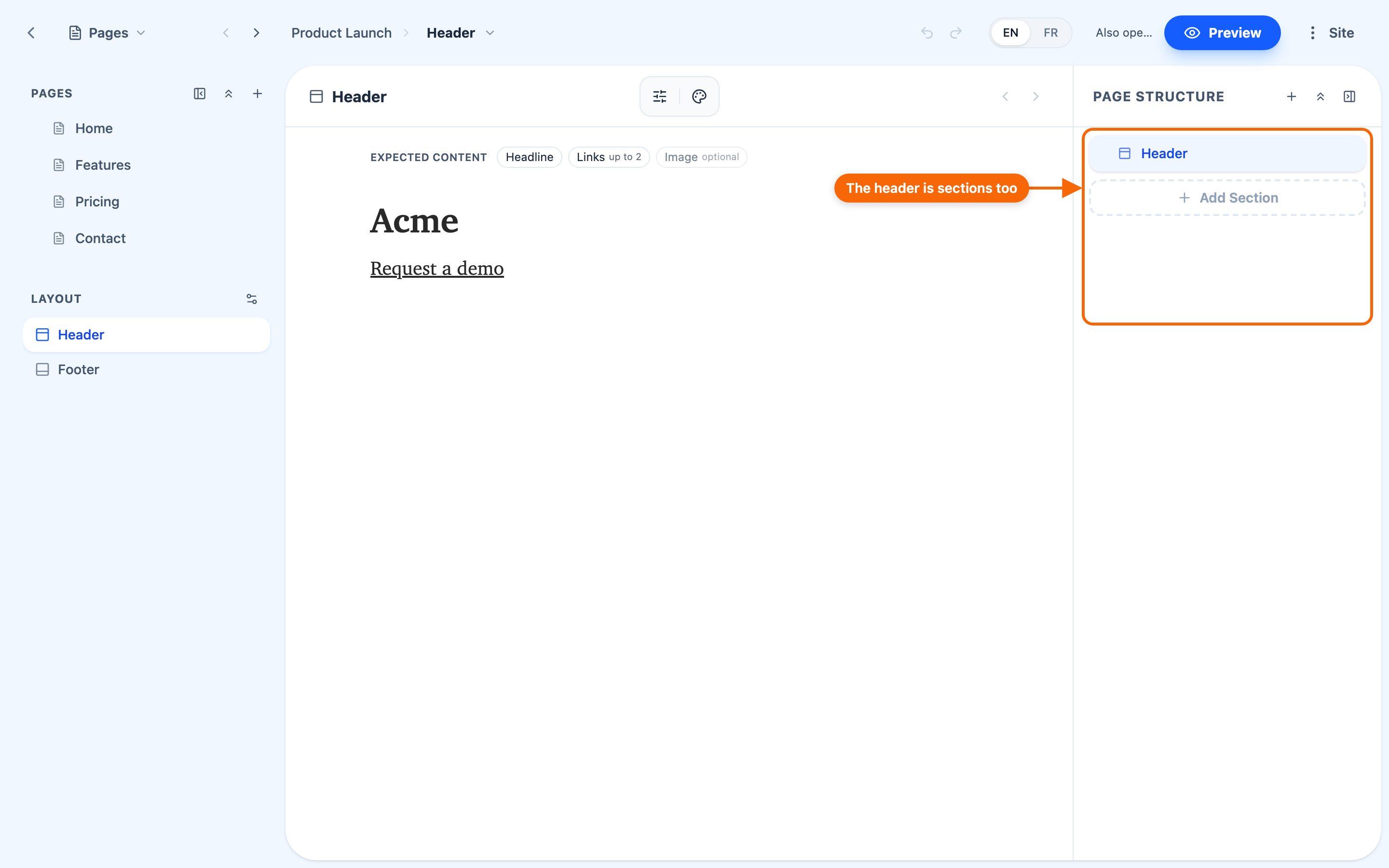
They're made of sections too
A header isn't a special control panel; it's a small set of sections that happens to show on every page. The same goes for the footer and the left and right side panels. To edit them, you add, remove, reorder, and configure their sections exactly as you would on a regular page. See Working with sections.
Which areas exist depends on your design system
Not every site has every area. Your Foundation decides which are available and how they behave:
- a marketing site might use a header and a footer;
- a documentation site might use a header and a left panel for navigation, and no footer;
- some design systems include auto-generated elements, like an "on this page" navigator in the right panel.
If a side panel isn't showing, check Configure Site Panels (the gear beside Layout in the pages panel, shown once the site has at least one layout area): it always lists Header, Footer, Left Sidebar and Right Sidebar, switched on or off for the whole site, and applies with Save Changes. Switching on an area your design system doesn't draw shows nothing. See Foundations and templates.
Per-page overrides
Individual pages can opt out of showing a standard area — a landing page without the usual header or footer, for example. Look in the page's settings for panel-visibility options. See Working with pages.
Changing the logo in the header
The logo in your header lives in one of the header's sections. To change it, edit the header and find the section that holds the logo, then update it there — just like editing any other content.
Don't confuse the header logo with the favicon — the small icon in a browser tab. The favicon is a site-wide setting, not part of the header's content: it is in the site's Settings, under Configuration → General, on a card called Favicon with an Upload favicon button.