

Working with pages
Pages are the addresses of your site, and how you arrange them becomes your navigation. This page covers creating, organizing, and controlling pages in the Editor. For the concept, see Pages and sections.
Creating and nesting pages
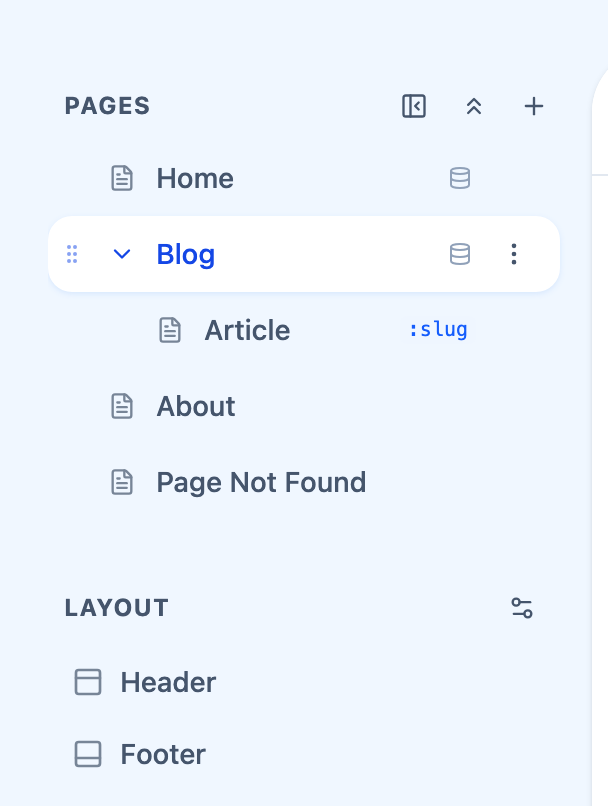
In the Editor, the pages panel lists your site's pages. Its + (Add page) offers Folder or Page; Page opens the section picker first, so the new page starts with the section you choose (cancelling creates nothing), and the page then opens for renaming in place. Place it where it belongs in the hierarchy. Nesting a page under another makes it a child:
Home
About
Services
  ├─ Consulting
  └─ Training
Blog
The hierarchy you build is the navigation structure visitors see, so organize pages the way you'd want someone to move through the site.
Reordering and re-nesting
Drag pages in the panel to reorder them or to nest and un-nest them. This is also how you change navigation order — there's no separate "menu builder," because the page hierarchy is the menu. See Drag and drop below.
Controlling what appears in navigation
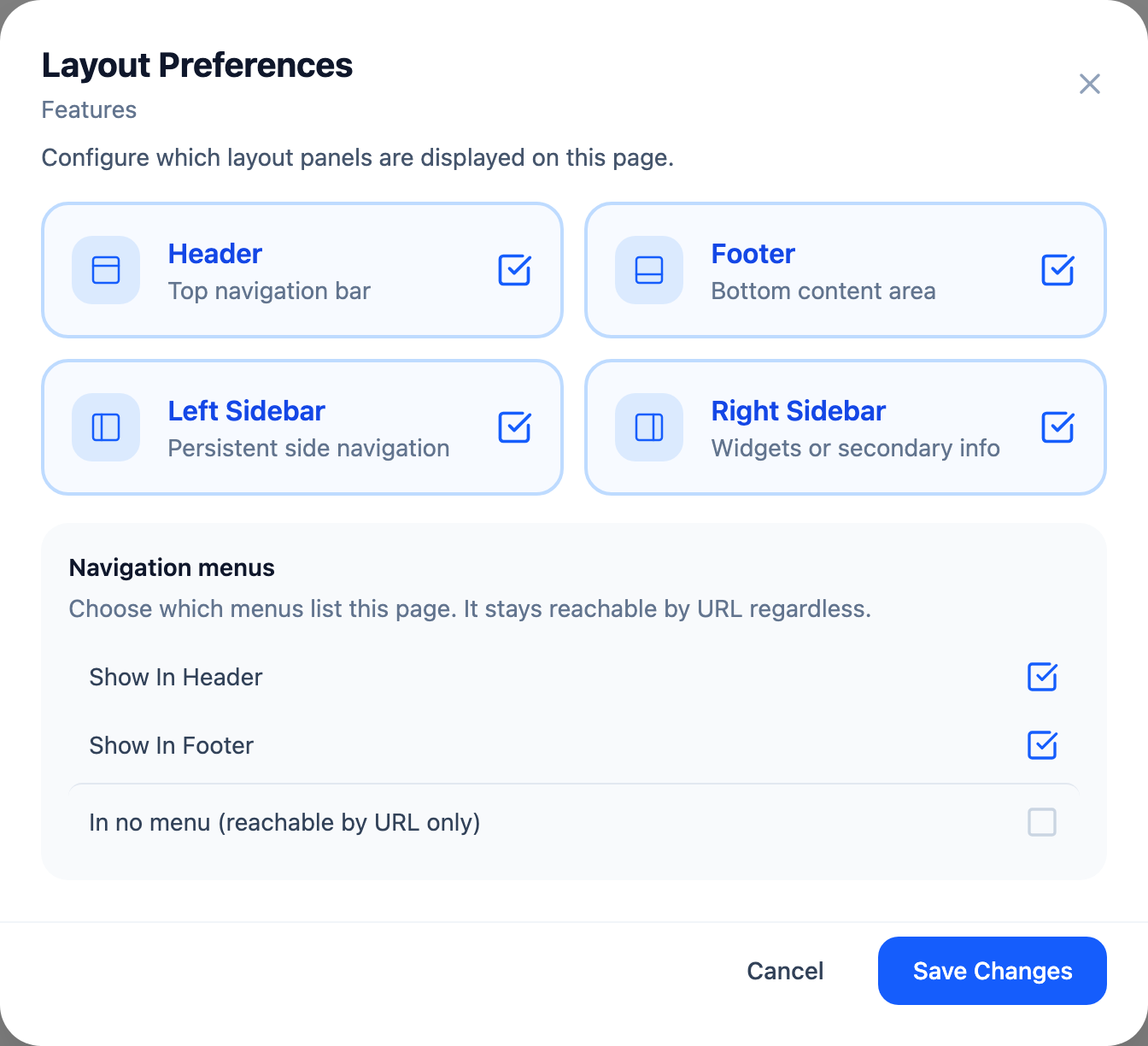
Not every page belongs in the main navigation — a privacy policy or a landing page might exist without a menu link. That choice lives in Layout Preferences, in a section headed Navigation menus: one checkbox per layout area the site has, each reading Show in that area, plus In no menu (reachable by URL only). As the panel says, a page kept out of every menu is still reachable by its address.
The Navigation menus section appears whenever the site has a layout area. If you don't see it, the site has none, and every page is reachable by URL.
Page settings
Right-click a page in the Pages panel. The menu holds:
| Item | What it does |
|---|---|
| Rename | Renames the page in place, without a dialog |
| Set as home | Makes this the site's home page — top-level pages only. On the current home page it reads Home page and is greyed out |
| Set as draft / Mark as live | Keeps a page out of the published site while you work on it, or puts it back |
| Delete | Removes the page and its sub-pages, after a Delete Page confirmation |
| Copy / Copy all / Paste before / Paste after | Copy one page or a page and everything under it, then paste it into another spot |
| Layout Preferences | Which menus list this page, and whether it shows the header, footer and side panels |
| Record source… | Connects the page to content managed outside it. Once a source is set, the item reads Record source |
| Redirect to… | Sends visitors from this page to another page of the site. Once set, the item reads Redirect set |
Layout Preferences also carries four checkboxes — Header, Footer, Left Sidebar and Right Sidebar — that decide which parts of the site's furniture this page shows.
Drag and drop
The Editor uses drag and drop for organizing structure:
- Pages — drag in the hierarchy to reorder or re-nest.
- Sections — drag within a page to reorder; you can also move or copy sections between pages. See Working with sections.
If a drag doesn't land where you expect, drop it and try again — nothing is committed until you release.
A note on templates
A template gives you a starting set of pages, but it's only a starting point. Add, remove, nest, and reorder pages freely — the design always comes from your Foundation, not from the template's particular structure.